> ## Documentation Index
> Fetch the complete documentation index at: https://docs.together-vietnam.com/llms.txt
> Use this file to discover all available pages before exploring further.
# Events
> Find events, register for free and paid events, and follow your registration status.
## Events tab
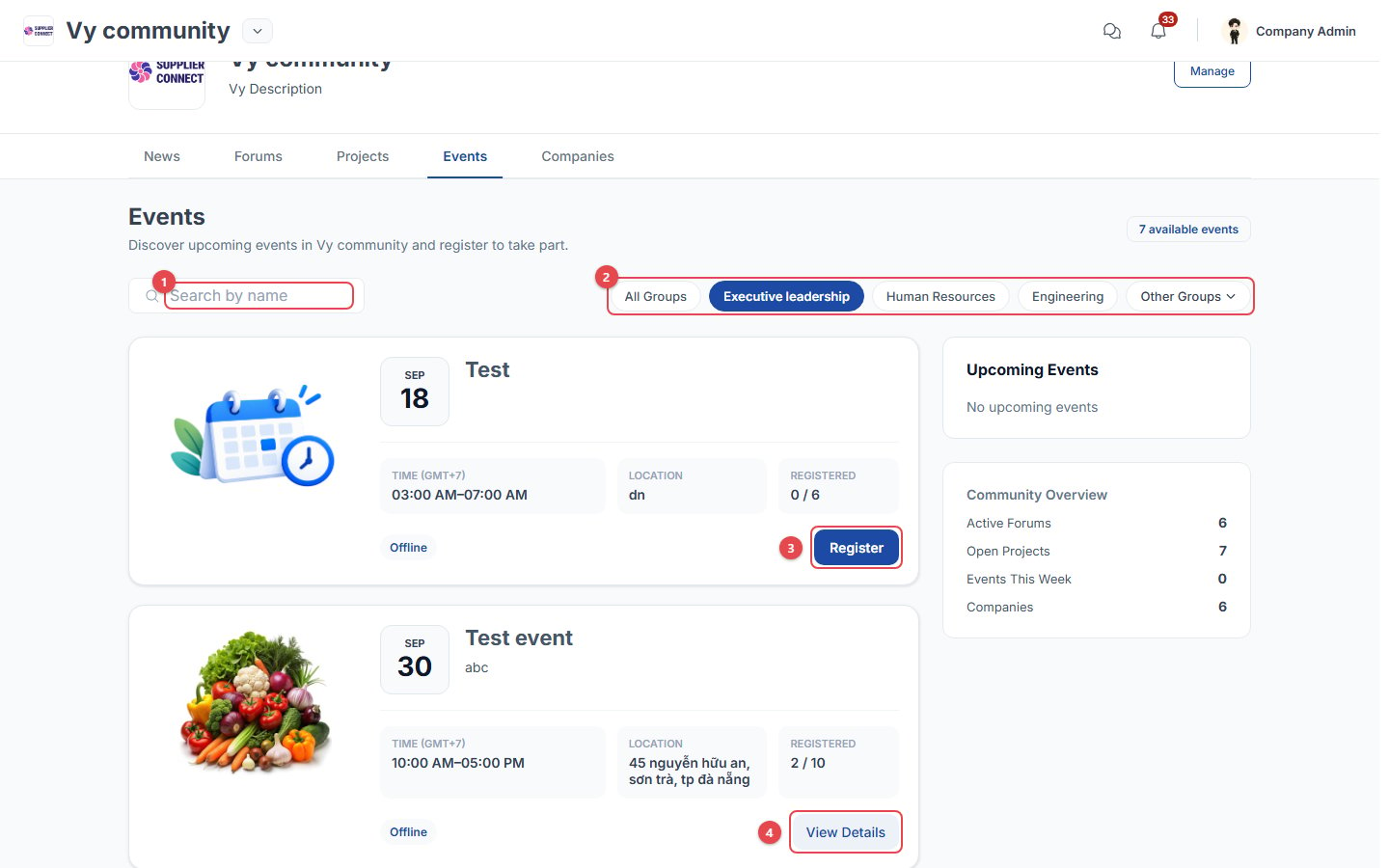 1. **Search** events by name.
2. **Filter by community group**: All Groups, Executive leadership, Human Resources, and so on.
3. **Register**: open the event and register.
4. **View Details**: opens the event page. Each card also shows the time, the location and the number of seats taken (for example **Registered 2 / 10**).
## Register for an event
1. **Search** events by name.
2. **Filter by community group**: All Groups, Executive leadership, Human Resources, and so on.
3. **Register**: open the event and register.
4. **View Details**: opens the event page. Each card also shows the time, the location and the number of seats taken (for example **Registered 2 / 10**).
## Register for an event
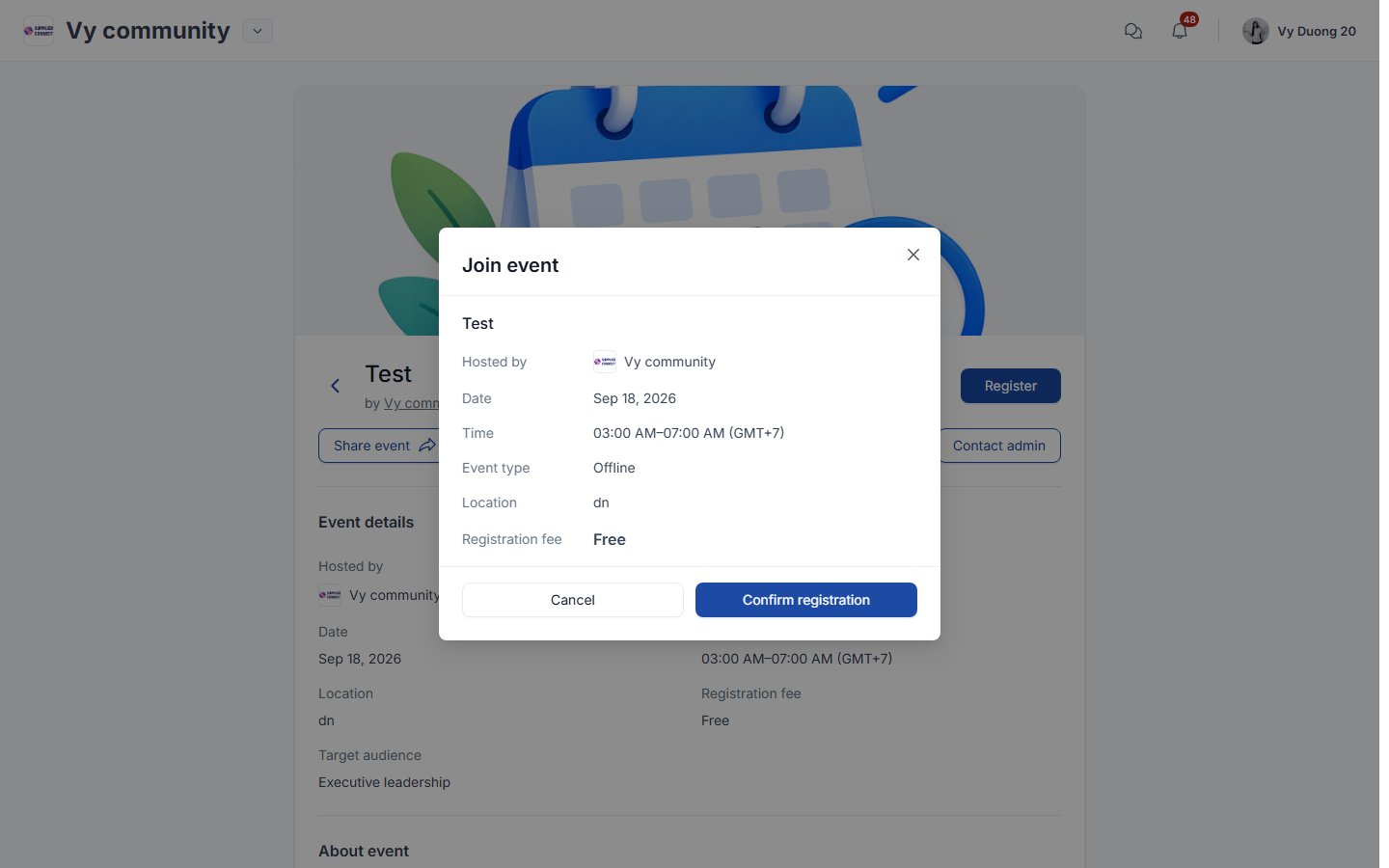 Clicking **Register** opens **Join event** with the event summary:
* For a **free** event, click **Confirm registration**.
* For a **paid** event, click **Continue to payment** and follow the flow below.
```mermaid theme={null}
flowchart TD
E([Event page → Register]) --> F{Free or paid?}
F -->|Free| CR[Confirm registration] --> DONE([Registration submitted])
F -->|Paid| PC{Who pays?}
PC -->|Personal payment| BANK[Transfer using bank details / QR code]
BANK --> T[I've transferred]
T --> PR[Upload proof of payment
Clicking **Register** opens **Join event** with the event summary:
* For a **free** event, click **Confirm registration**.
* For a **paid** event, click **Continue to payment** and follow the flow below.
```mermaid theme={null}
flowchart TD
E([Event page → Register]) --> F{Free or paid?}
F -->|Free| CR[Confirm registration] --> DONE([Registration submitted])
F -->|Paid| PC{Who pays?}
PC -->|Personal payment| BANK[Transfer using bank details / QR code]
BANK --> T[I've transferred]
T --> PR[Upload proof of payment
optional]
PR --> SR[Submit for review] --> DONE
PC -->|Request payment| CA[Your company admin
is notified and pays] --> DONE
DONE --> ST{Admin review}
ST -->|Confirmed| REG([Registered ✅])
ST -->|Rejected| REJ([Rejected])
```
## After registering
The event page shows your status:
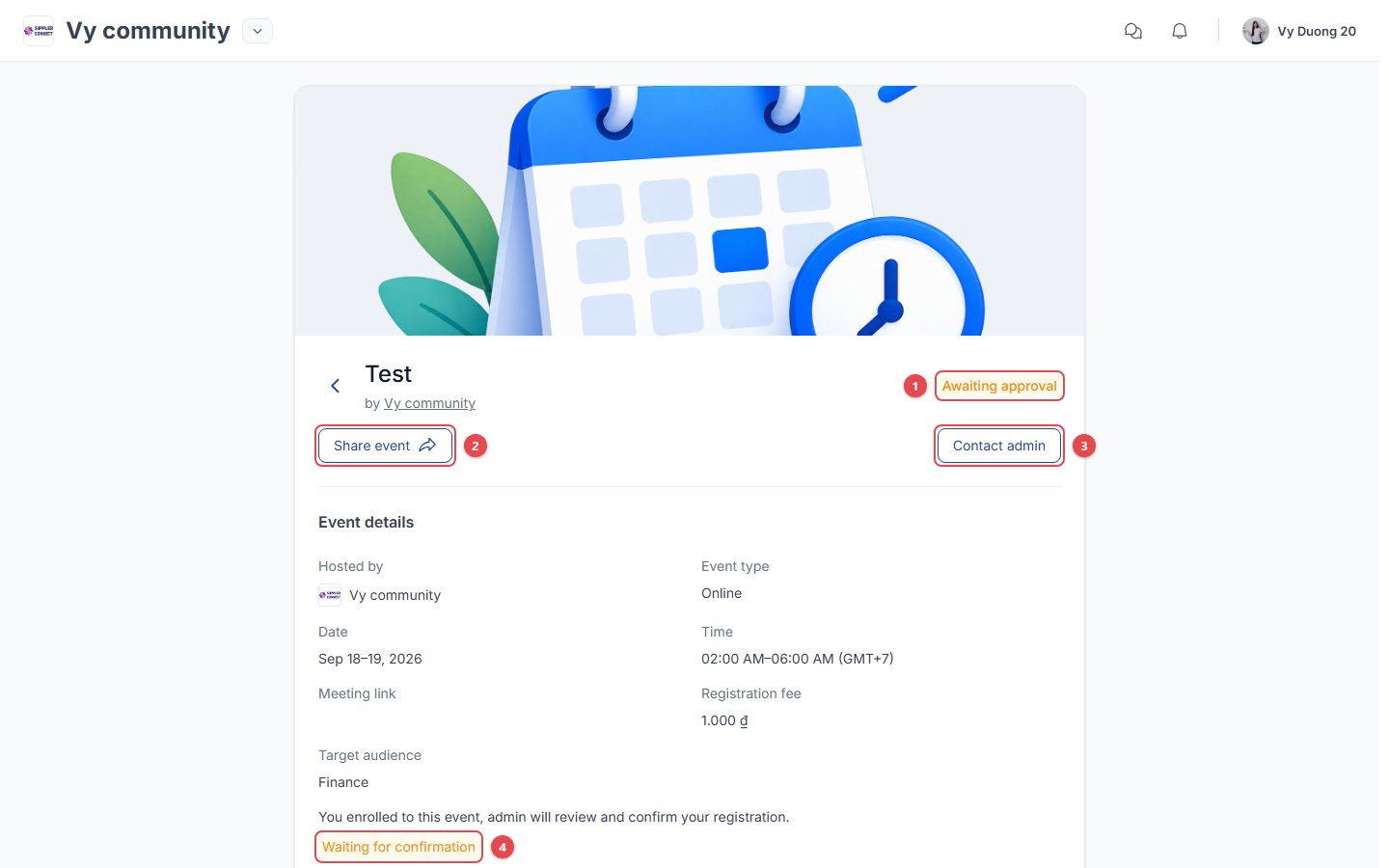 1. **Awaiting approval**: the community admin hasn't confirmed your registration yet. It changes to **Registered** (or **Rejected**).
2. **Share event**: share it on social networks or copy the link.
3. **Contact admin**: send a question to the Together Vietnam team.
4. **Waiting for confirmation**: the same status, shown under the event details.
You get reminders 1 day before, 1 hour before, and when the event starts. After the event, **Event materials** (photos, videos, documents, recording links) may appear on this page.
Company admins see **Register member** instead of **Register**, so they can register colleagues. See [Company admin: Team](/admin/company-admin#register-employees-for-events).
This documentation is built and hosted on [Mintlify](https://mintlify.com), a developer documentation platform.
1. **Awaiting approval**: the community admin hasn't confirmed your registration yet. It changes to **Registered** (or **Rejected**).
2. **Share event**: share it on social networks or copy the link.
3. **Contact admin**: send a question to the Together Vietnam team.
4. **Waiting for confirmation**: the same status, shown under the event details.
You get reminders 1 day before, 1 hour before, and when the event starts. After the event, **Event materials** (photos, videos, documents, recording links) may appear on this page.
Company admins see **Register member** instead of **Register**, so they can register colleagues. See [Company admin: Team](/admin/company-admin#register-employees-for-events).
This documentation is built and hosted on [Mintlify](https://mintlify.com), a developer documentation platform.